
Installation
On this page you will find the step-by-step instructions for installing the cloud version of Boxroom on Heroku.
Requirements
The requirements for installing Boxroom on Heroku are:
Make sure Ruby and Git are properly installed on your system before continuing.
Step-by-step installation
The first step is to install Heroku's command line interface and create an application.
	$ gem install heroku

	$ heroku apps:create
The last command will return the name, URL and git location of your app. Store this information somewhere. You need it later on.
	Creating quiet-water-6959... done, stack is cedar

	http://quiet-water-6959.herokuapp.com/ | git@heroku.com:quiet-water-6959.git
Note that you can change the name and URL of your app later on via Heroku's web interface.
Boxroom needs to send emails. For this you have to add the Sendgrid add-on to the application. (Note: use the app name you got from Heroku in the previous step)
$ heroku addons:add sendgrid:starter --app quiet-water-6959
The next step is to download Boxroom from the URL in the confirmation email you received after purchasing. If you did not receive a confirmation email, please get in touch. Extract the downloaded zip file. In your terminal change directory to the newly created folder.
$ cd boxroom
You are almost ready to deploy Boxroom to Heroku, but first you have to change the default settings for sending mail.
Open the file config/environments/production.rb with a text editor and adjust the following lines with the appropriate info:
	# Tell mailer the host address of your application

	config.action_mailer.default_url_options = { :host => 'myapp.herokuapp.com', :protocol => 'https' }


	# The from-address of the emails that Boxroom sends

	ActionMailer::Base.default :from => 'Boxroom <me@email.com>'
For example:
	# Tell mailer the host address of your application

	config.action_mailer.default_url_options = { :host => 'quiet-water-6959.herokuapp.com', :protocol => 'https' }


	# The from-address of the emails that Boxroom sends

	ActionMailer::Base.default :from => 'John Doe <john@gmail.com>'
Heroku uses Git for deployment. Initialize a new git repository:
$ git init
Add the code to the repository with the following commands:
	$ git add .

	$ git commit -m "Initial commit"
Now you are ready to deploy the application to Heroku. Use the git location that was provided to you by Heroku when you created the app.
$ git push git@heroku.com:quiet-water-6959.git master
The last step before you can access Boxroom in a web browser is to create a database. (Again: use the app name you got from Heroku in the second step of these instructions)
$ heroku run rake db:migrate --app quiet-water-6959
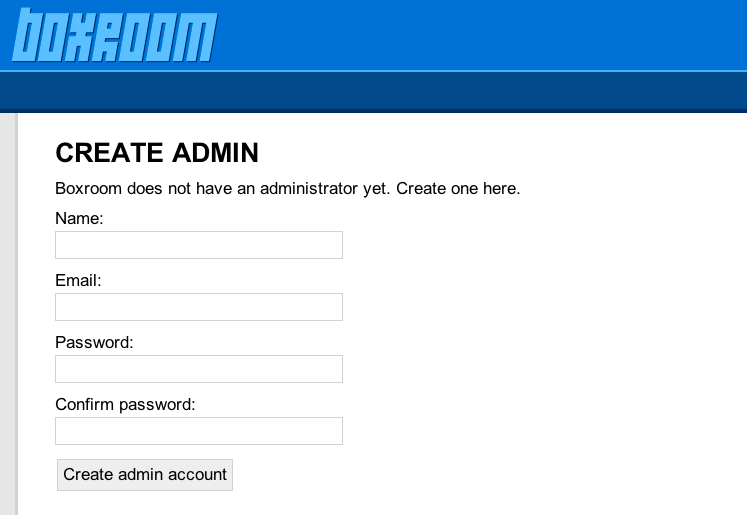
You can now open your browser and access the app via the URL given to you earlier. Create an admin account and log in.
The last step is to enter your Amazon S3 Access Key. After logging in to Amazon, you can find your access key via Security Credentials.
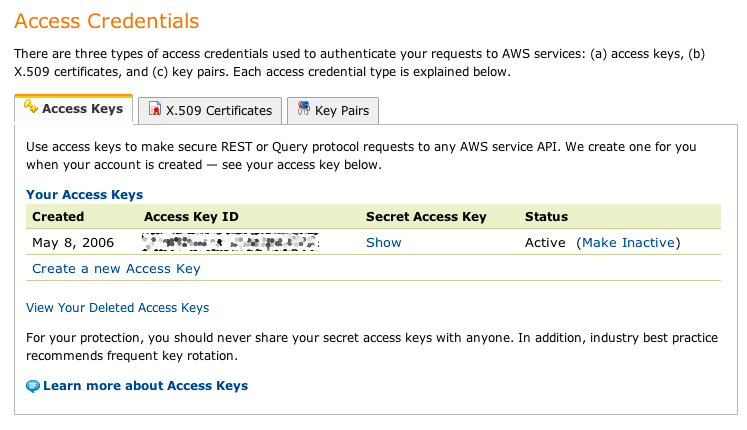
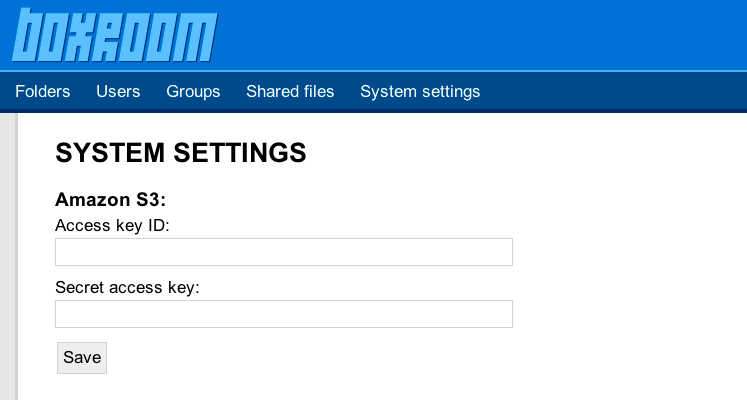
The access key consist of an Access Key ID and an Access Key Secret. Copy/paste the ID and the secret to Boxroom and click Save. You are now ready to use the application.
If you run into any difficulties installing Boxroom on Heroku, please contact me. And remember, Boxroom comes with one hour of free consulting. So, if you want me to do the installation for you, no problem. Please get in touch.